Google Input Tools Nepali Offline Installer for Windows
Updated
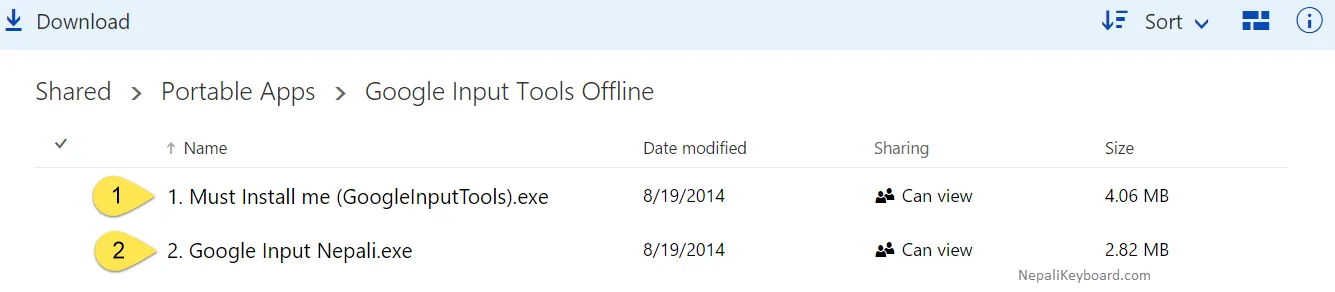
Google no longer offers the Google Input Tools Nepali offline installer for Windows. Below you will find Google's archived download page, the online Nepali keyboard on this page, and the Nepali keyboard built into Windows 11 and 10.
Status: discontinued
- Google no longer offers Google Input Tools for Windows, and it no longer receives updates.
- NepaliKeyboard is not affiliated with Google and does not host the installer.
- Most people are best served by the online keyboard below: nothing to install, and you can type Nepali by sound.
Download the offline installer from Google's archived page
The Internet Archive saved Google's own Google Input Tools for Windows page on 13 March 2018. It is the safest place to look for the original installer, because it is Google's page rather than a copy on a download site.
Open Google's archived download page
- The link goes through qrsr.cc, our short link, to web.archive.org, an independent site. Neither NepaliKeyboard nor Google runs the archive, and we cannot vouch for the files it serves.
- On that page, choose Nepali and follow Google's steps. The installer is several years old: Windows may show a warning, and it may not finish installing on current Windows.
- Google Input Tools no longer gets updates or security fixes. If it does not install, use one of the options below.
- Looking for another language? Google Input Tools for Windows also covered languages such as Hindi, Marathi and Bengali, and you choose them on the same archived page.
No install needed: type Nepali here
Choose Romanized and type how the words sound. Unlike
Google Input Tools, it does not suggest words; it follows fixed spelling
rules, so long vowels are typed double (aa,ee,
oo). See the
rule table, and copy your text into any
program when you are done.
Typing workspace
Type how it sounds: namaste becomes नमस्ते. The word converts as you type and is kept when you press space.
Restored your last text from this browser.
On-screen keyboard
Ctrl + G switches between Nepali and English. Your text stays in this browser. Typing and conversion happen on your device; nothing you type is sent to a server.
Add the Nepali keyboard built into Windows
Windows includes a Nepali keyboard, so you can type Nepali in every program without extra software. It uses the Traditional Nepali layout. Menu names can differ slightly between Windows updates.
Windows 11
- Open Settings (press the Windows key and I).
- Go to Time & language, then Language & region.
- Next to Preferred languages, select Add a language.
- Search for Nepali, select it and choose Next.
- If you only want the keyboard, clear the optional features such as the language pack, then choose Install.
Windows 10
- Open Settings and go to Time & Language, then Language.
- Under Preferred languages, select Add a language.
- Choose Nepali, then Next and Install.
Switch between English and Nepali
Press Windows + Space, or select the language button next to the clock in the taskbar.
If you learned typing on Preeti
The Windows keyboard follows the Traditional layout, which places most letters where Preeti does but types in Unicode order. If you prefer Preeti habits, choose Preeti layout in the online keyboard above: your keys work as in Preeti and the result is Unicode.
Why we do not host the installer
- Google stopped distributing the Windows version, and we have no confirmed right to redistribute it. That is why we link to Google's own archived page instead of hosting a copy.
- Copies on other websites cannot be checked, and old software receives no security updates.
- You do not need it: the online keyboard and the Windows keyboard both produce standard Unicode Nepali.
Already have text in Preeti?
Documents typed years ago often use the Preeti font. Convert them with the Preeti to Unicode converter, or go the other way with Unicode to Preeti.
Questions and answers
Can I still download Google Input Tools Nepali for Windows?
Not from Google. Google no longer offers the Windows version. The Internet Archive keeps a copy of Google's original download page, linked on this page, but the installer is old and may not finish installing on current Windows. The online keyboard on this page and the Nepali keyboard built into Windows both work today.
Does Google Input Tools Nepali work offline?
Once installed, the Windows version typed Nepali without an internet connection. The online keyboard on this page also keeps working if your connection drops after the page has loaded, and the keyboard built into Windows works fully offline.
Is NepaliKeyboard part of Google?
No. NepaliKeyboard is an independent website and is not affiliated with Google. Google Input Tools is a Google product.
Is it safe to download Google Input Tools from another website?
Avoid copies on download and mirror sites: an installer from an unofficial site can be altered, and old software no longer gets security fixes. If you need the original, use the Internet Archive's copy of Google's own page linked here. You do not need it to type Nepali: the online keyboard and the built-in Windows keyboard both type Unicode Nepali.
Can I type Romanized Nepali on Windows without Google Input Tools?
Yes, on this page. Choose Romanized in the keyboard above and type words as they sound, for example namaste for नमस्ते, then copy the text into any program. The keyboard built into Windows uses the Traditional layout, not Romanized typing.
How do I switch between English and Nepali in Windows?
After adding Nepali, press the Windows key and Space together, or select the language button in the taskbar, to move between your keyboards.
Sources
- Google Input Tools, Wikipedia , for the discontinued Windows version and the archived Google page.
More Nepali tools
-
Preeti to Unicode
Turn Preeti text into Unicode Nepali that works everywhere.
-
Unicode to Preeti
Get Preeti text for documents that still use the Preeti font.
-
Kantipur to Unicode
Convert text typed in the Kantipur font.
-
Unicode to Kantipur
Get Kantipur text for older documents.
-
Romanized to Unicode
Convert Romanized Nepali, with the full rule table.
-
Nepali keyboard layout
Traditional Unicode and Preeti layout charts.
-
Nepali Unicode Converter Pro
Every conversion in one tool.