How to add a Nepali keyboard on iPhone and iPad
iPhone and iPad include a Nepali keyboard. Add it in Settings, then tap the globe key to switch between English and Nepali in any app.
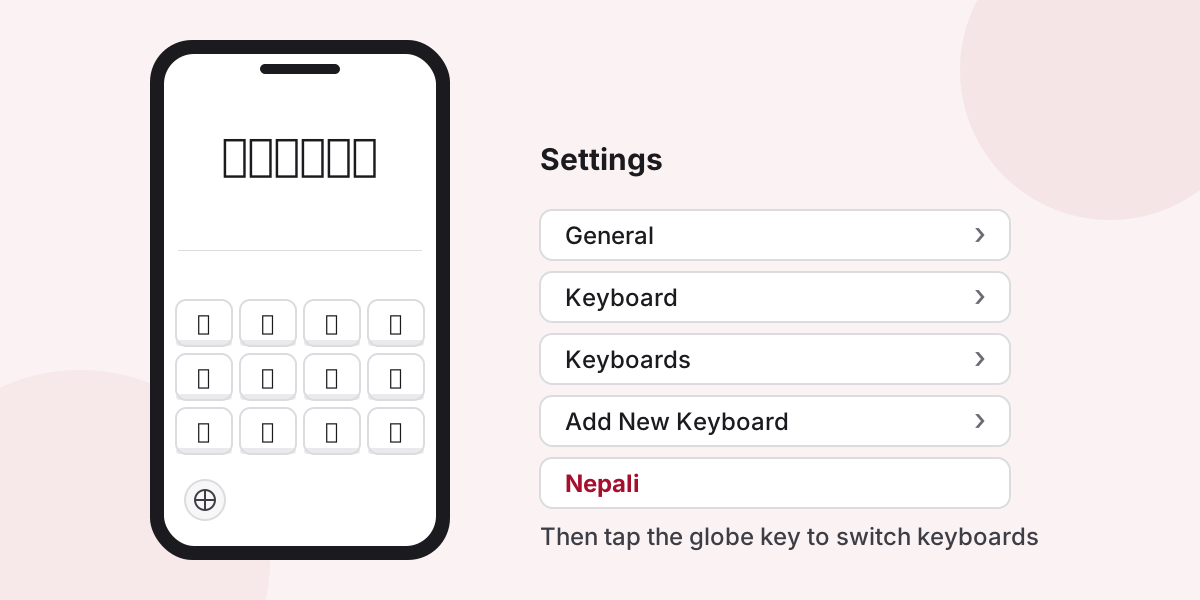
Add the built-in Nepali keyboard
- Open Settings.
- Go to General, then Keyboard, then Keyboards.
- Tap Add New Keyboard.
- Find Nepali in the list and tap it.
Menu names can differ slightly between iOS versions.
Switch between keyboards
Tap the globe key at the bottom left of the keyboard to move to the next keyboard. Touch and hold it to pick one from the list.
Type by sound (Romanized)
The built-in keyboard places Nepali letters on keys. If you would rather type how words sound, for example namaste for नमस्ते, you have two options:
- Use the online Nepali keyboard in Safari and copy the text into any app. Nothing to install.
- Install a keyboard app that offers Romanized typing, such as Hamro Keyboard, from the App Store.
Remove a keyboard
Go to Settings, General, Keyboard, Keyboards, tap Edit, then remove the keyboard you no longer need.
Questions and answers
Do I need an app to type Nepali on iPhone?
No. The Nepali keyboard is built into iPhone and iPad. Apps such as Hamro Keyboard add Romanized typing if you prefer typing by sound.
How do I switch back to English?
Tap the globe key at the bottom of the keyboard, or touch and hold it to choose a keyboard from the list.
What does Allow Full Access mean for a keyboard app?
It lets a keyboard app use the network and share data with its app. Apple shows a warning because the keyboard could send what you type. The built-in Nepali keyboard does not need it.